|
|
|
|
|


Sample VB.NET Application
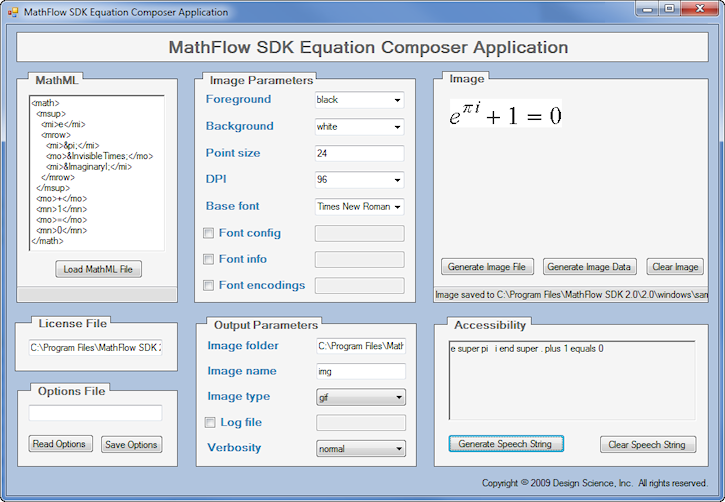
The sample Visual Basic program below illustrates how to use the EquationComposer (EquationComposer32 or EquationComposer64 for Windows operating systems) class to generate images from MathML. The source code is provided so that you can experiment with different techniques for use in your own programs.
Prerequisites for Running the Program
- You must have the .NET 2.0 Framework installed.
- The
EquationComposer32.dll(for Windows 32-bit systems) orEquationComposer64.dll(for Windows 64-bit systems) must be registered. Use the commandregsvr32 <path to your operating system's specific DLL>to register it. - The
dessci.licfile should be in the same directory as the sample code executable.
Running the Program
To illustrate the use of the Equation Composer, there is a sample application in the following directory:
<path-to-mathflow-sdk>/windows/samples/EquationComposerApplication/EquationComposerApplication32.exe (or EquationComposerApplication64.exe)
To run the program, double-click this file. The sample program allows you to change the input parameters used to generate an equation image (see below). After changing the input parameters and telling the program where to save the generated image, click the Generate Image File button. Note that while you can't view an EPS (encapsulated postscript) generated image, the image is saved as an EPS file.
Source Code
The source code for the sample program is located in the following directory:
<path-to-mathflow-sdk>/windows/samples/EquationComposerApplication/src/EquationComposerApplication
Use Visual Studio 2005 to open the EquationComposerApplication32.sln or EquationComposerApplication64.sln solution file.
Programming Notes
The main functions/subroutines in this program are as follows:
New()
- Instantiates a
MathFlowSDK.EquationComposerobject, which is used throughout the program. - Initializes the program controls with default values
- Sets the options for the Equation Composer using the values of the program controls
GenerateImageFile()
Within a Try/Catch block:
- Sets the options for the Equation Composer using the values of the program controls
- Calls the method to generate the image
SetOptions()
- Sets the value of each option for the Equation Composer
- The general strategy in the sample application for handling exceptions in the
SetOptionmethods is:- If an option is required (i.e.,
license,mathmlormathmlfile) and an exception is thrown by theSetOptionmethod, throw an exception with the error message returned from theSetOptionmethod - If an option is optional and has a default value (e.g.,
pointsize), catch any exception thrown by theSetOptionmethod, retain the warning message for display later and continue processing, using the default value for that option - If an option is optional and does not have a default value (e.g.,
logfile), catch any exception thrown by theSetOptionmethod, retain the resulting message for display later, call theSetOptionmethod again with an empty string to tell the system not to use that option and continue processing
- If an option is required (i.e.,
Note that this is only one way in which the options for an Equation Composer can be set. Another possible approach would be to call each set method when the value of a program control changes.
GetOptions()
Sets the value of the program controls from the corresponding options of the Equation Composer
|
|
|
|
|
![[Design Science Home]](dessci_logo.gif)
Copyright © 1996-2016 Design Science, Inc. All rights reserved.